Can I have all articles within an issue automatically, sequentially paginated?
Yes! If you're using Scholastica's Typesetting and Production service you can use our automatic pagination feature to ensure your articles within a given issue display consecutive pagination automatically.
How do I set an issue to use automatic pagination?
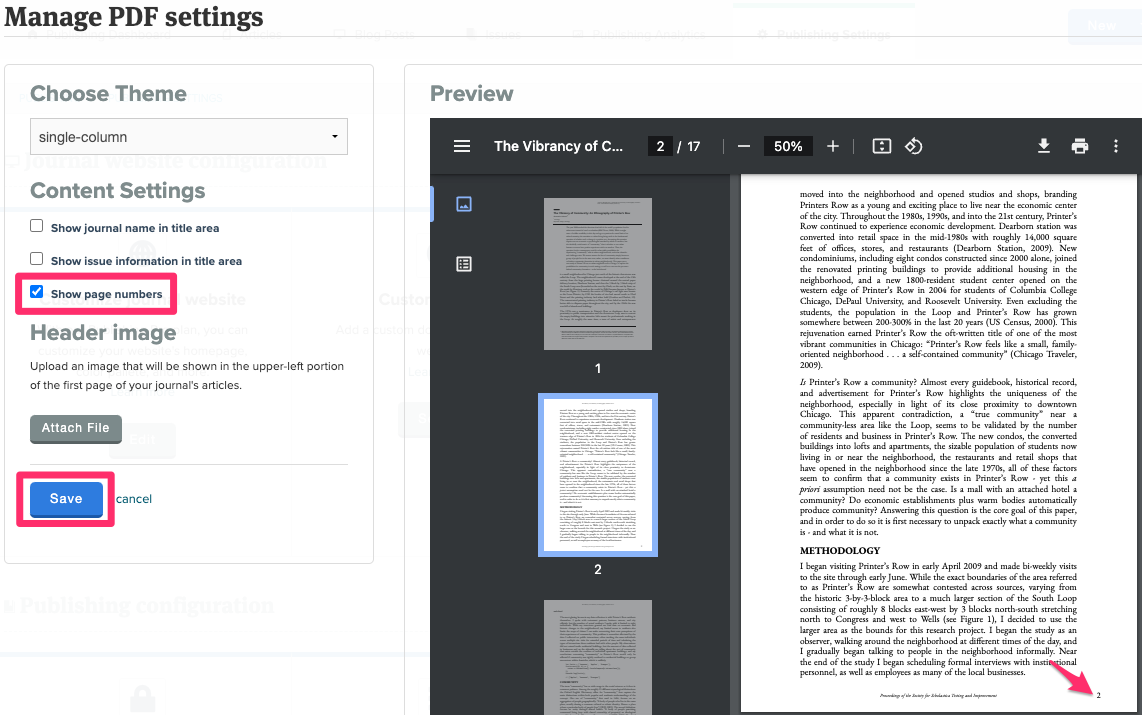
You'll first navigate to your Publishing Settings page to enable the display of page numbers in your article PDFs (note: this setting is turned 'on' by default).
Navigate to My Journals > Publishing > Publishing Settings > "Edit" under Typeset PDF settings.
Ensure the "Show page numbers" box is checked and save any changes you've made.
To set an issue to use automatic pagination, you'll then navigate to the Issue metadata or issue details page. When creating a new issue, you'll navigate to My Journals > Publishing > New > Issue > Issue Details.
Once on the issue details page, you'll fill in all required issue information and then, at the bottom of the page, check the box next to the "Automatic pagination" label.
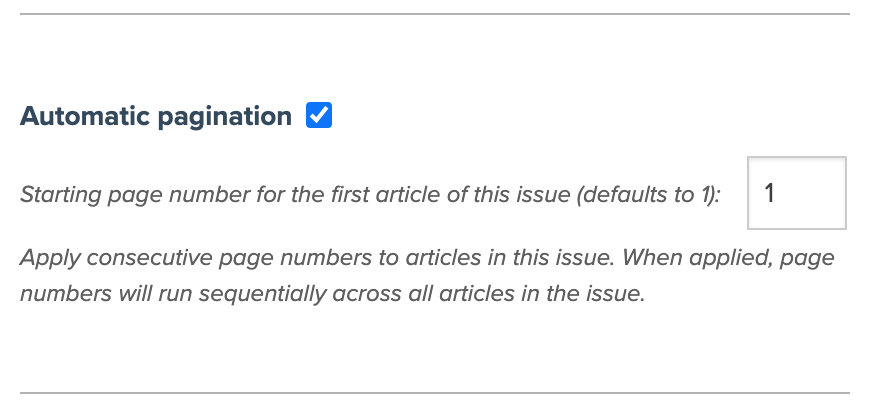
Once you've checked the box, you'll be given the chance to select a starting page number for the first article in the issue, after which point we'll automatically adjust all page numbers for all articles in that issue to run sequentially from there.
Make any desired changes and then click "Save" at the right to save those changes.
How do I ensure articles show in the correct order in the issue and are numbered accordingly?
You'll adjust article order as per usual by first adding articles to the issue, either on the Article Metadata step for a given article:
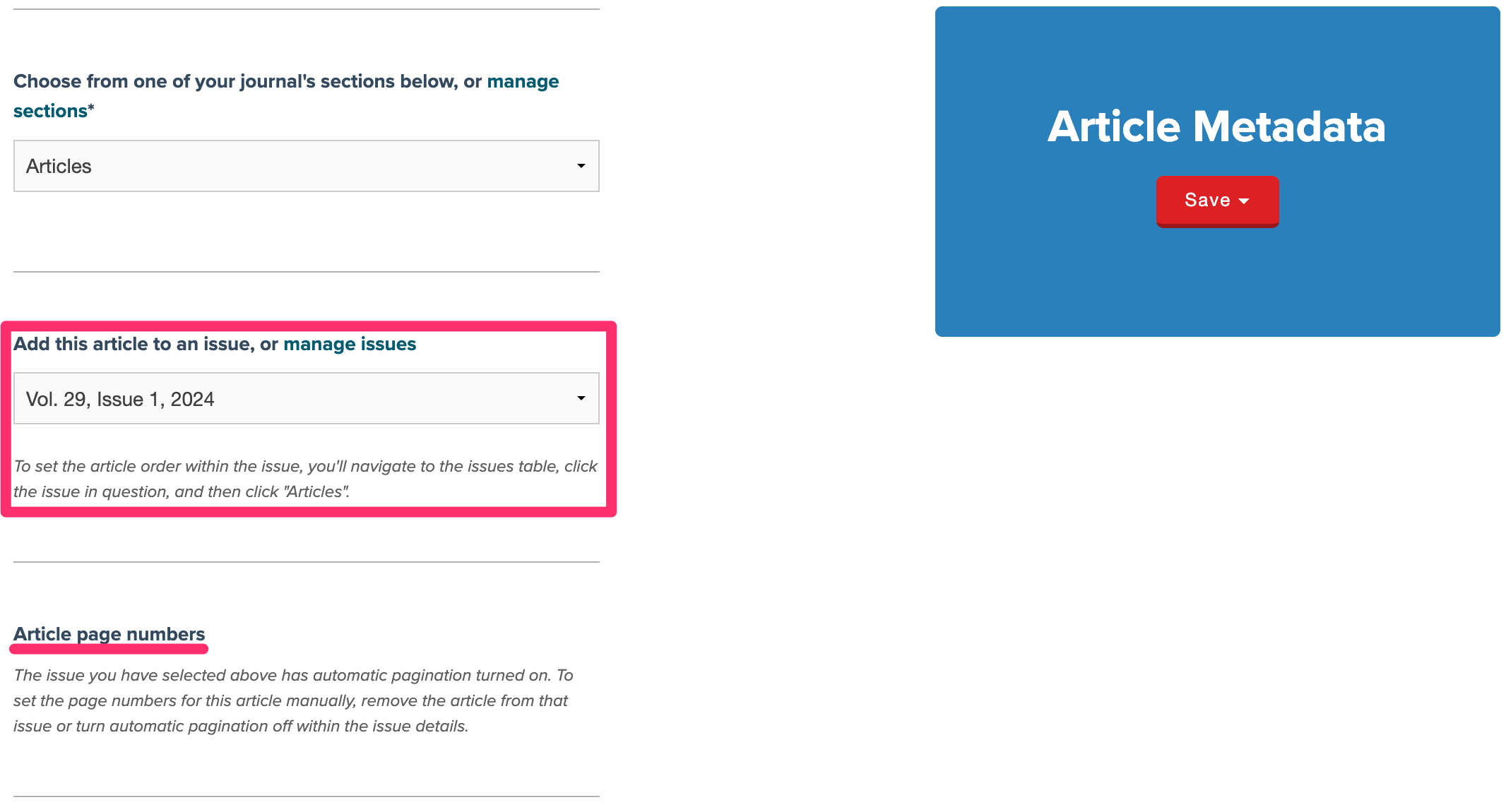
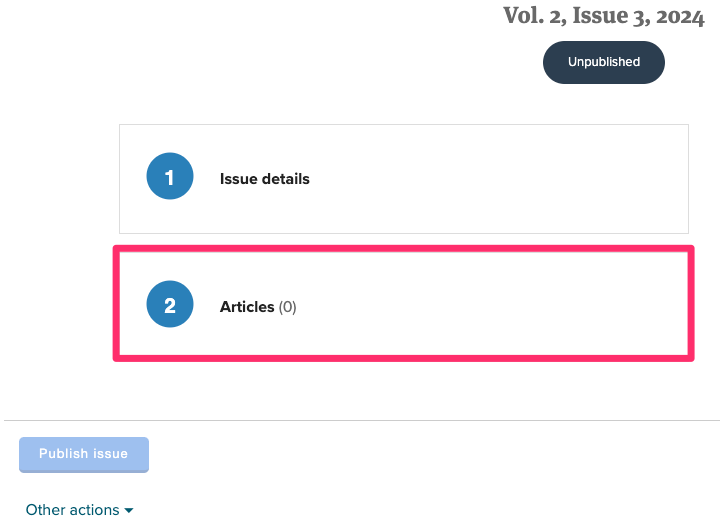
or by clicking the Articles step on the Issue page:
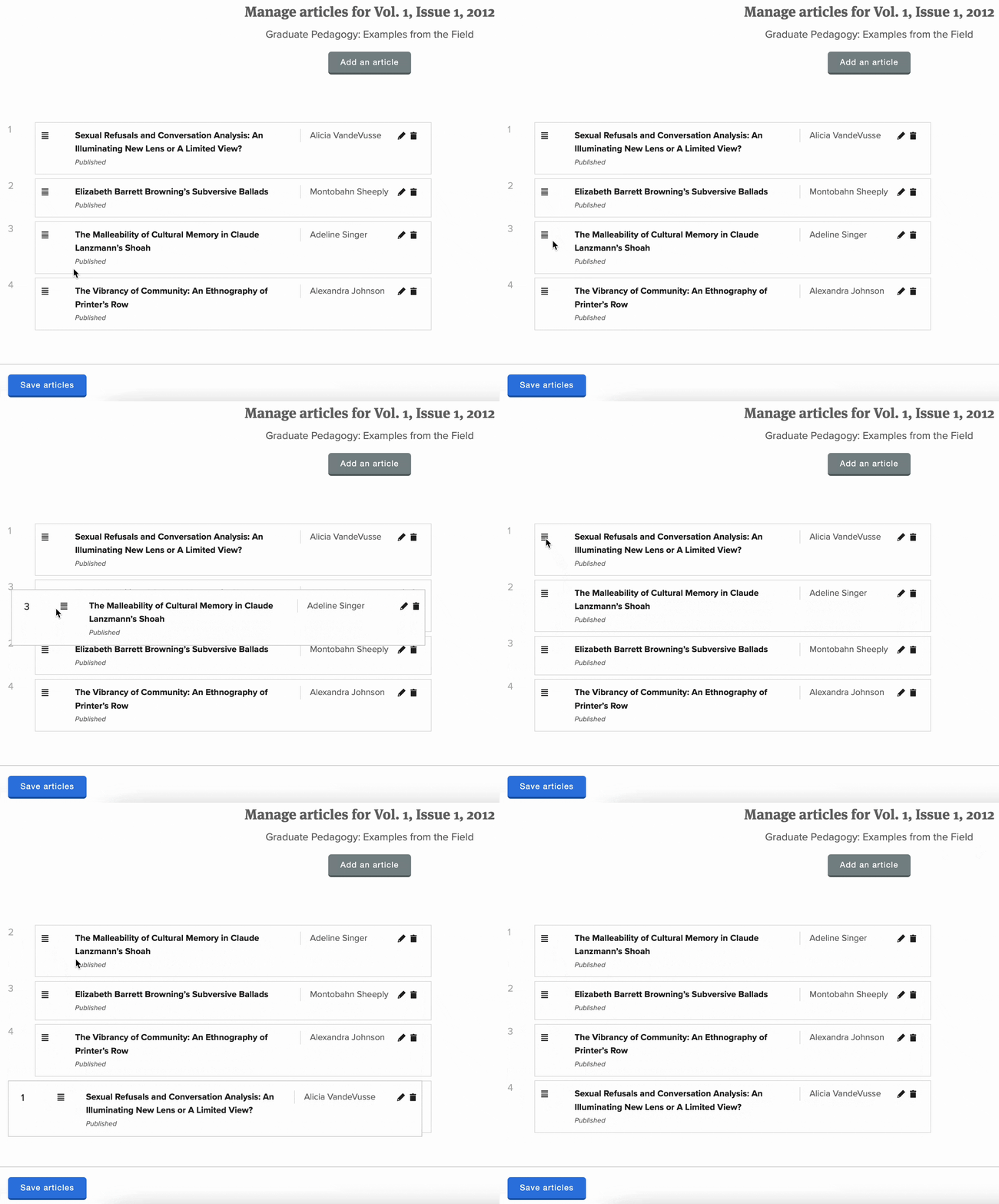
Once you've added your articles to the issue, you'll go to the Articles step on the Issue page and can click and drag the articles to set them in your desired article order then click "Save articles" to save your changes.