
ORCID sign in and registration
Sign In and Register with ORCID
Want to use your ORCID iD to sign in to Scholastica? You can connect your ORCID account to your Scholastica account for a faster, more convenient login experience — or use ORCID to pre-fill your information when creating a new account.
In this article
- What is ORCID sign-in?
- Registering a new account with ORCID
- Registering via an invitation with ORCID
- Signing in with ORCID
- Connecting your ORCID from account settings
- Disconnecting your ORCID
- FAQ
What is ORCID sign-in?
ORCID is a widely used digital identifier for researchers. Scholastica supports ORCID as an alternative way to sign in to your account. Once your ORCID iD is connected to your Scholastica account, you can sign in with either your ORCID credentials or your email and password — whichever you prefer.
You can connect your ORCID to Scholastica in three ways:
- When creating a new account from the sign up page
- When creating a new account by accepting a reviewer or editor invitation
- From your account settings (if you already have a Scholastica account)
Registering a new account with ORCID
If you're creating a new Scholastica account, you can optionally use ORCID to pre-fill your registration information.
- Go to the signup page.
-
Click Register with ORCID iD at the top of the form.
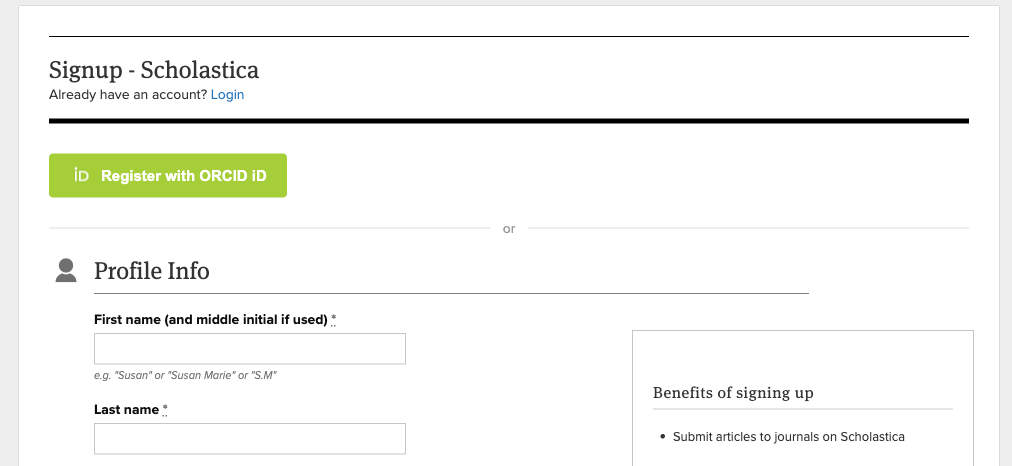
- You'll be redirected to ORCID's authorization page. Log in to ORCID and authorize Scholastica.
- You'll be redirected back to the signup page. A green ORCID iD connected banner will confirm the connection, and your name (and email, if publicly available on ORCID) will be pre-filled.
- Review and edit the pre-filled fields as needed. If your email was not provided by ORCID, enter it manually.
- Set a password. (You'll use this as a backup login method — you can also sign in with ORCID going forward.)
- Fill in any remaining required fields, accept the Terms of Service, and click Signup.
- You'll receive a confirmation email. Click the link in that email to activate your account.
Once confirmed, your ORCID iD is linked to your new account and you can sign in with ORCID immediately.
Note: All pre-filled fields are fully editable. If you change the pre-filled email address, your confirmation email will be sent to the address you entered.
Registering via an invitation with ORCID
If you've received a reviewer or editor invitation, you can optionally link your ORCID during the registration process.
- Click the registration link in your invitation email.
-
On the registration page, click Link your ORCID iD (marked as optional).
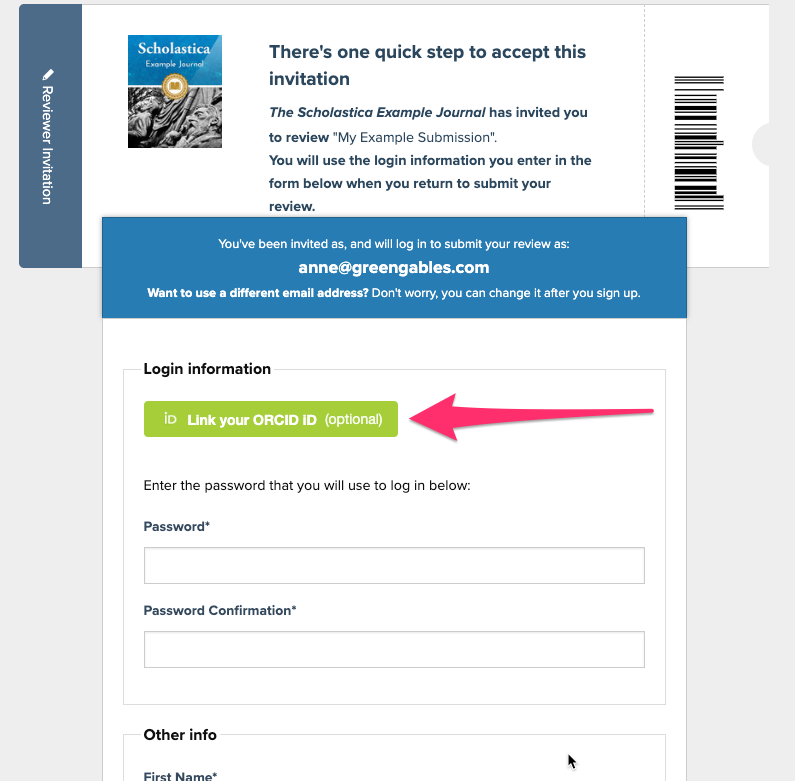
- An ORCID authorization popup will open. Log in to ORCID (if needed) and authorize Scholastica.
- The popup will close and you'll see a green ORCID iD connected banner on the registration page. Your first and last name will be pre-filled from ORCID.
- Set a password and fill in any remaining required fields.
- Accept the Terms of Service and click Accept Invitation.
Your account will be created with your ORCID linked, and you'll be signed in automatically.
Note: Your email address is set by the invitation and cannot be changed during this process — even if your ORCID has a different email on file.
Signing in with ORCID
Once your ORCID iD is connected to your Scholastica account, you can use it to sign in.
- Go to the login page.
-
Click Sign in with ORCID (located below the email/password form).
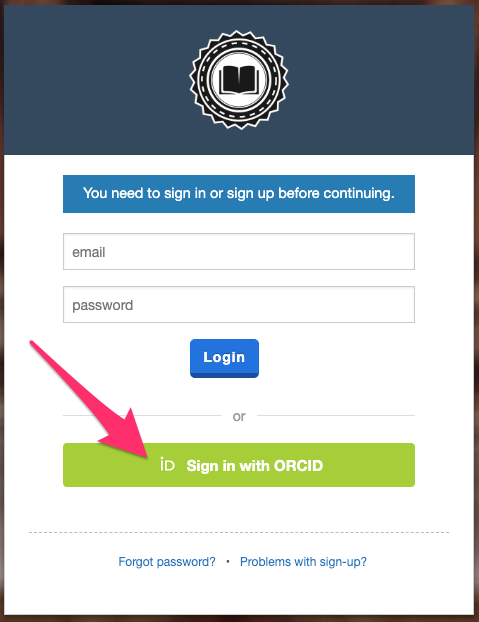
- You'll be redirected to ORCID's authorization page. Log in to ORCID (if needed) and authorize Scholastica.
- You'll be signed in and redirected to your dashboard.
You can still sign in with your email and password at any time — connecting ORCID does not disable password-based login.
Connecting your ORCID from account settings
If you already have a Scholastica account and want to enable ORCID sign-in:
- Log in to Scholastica, mouseover your name at the top right and click My Account
- Find the ORCID section in the sidebar.
-
Click Connect ORCID account.
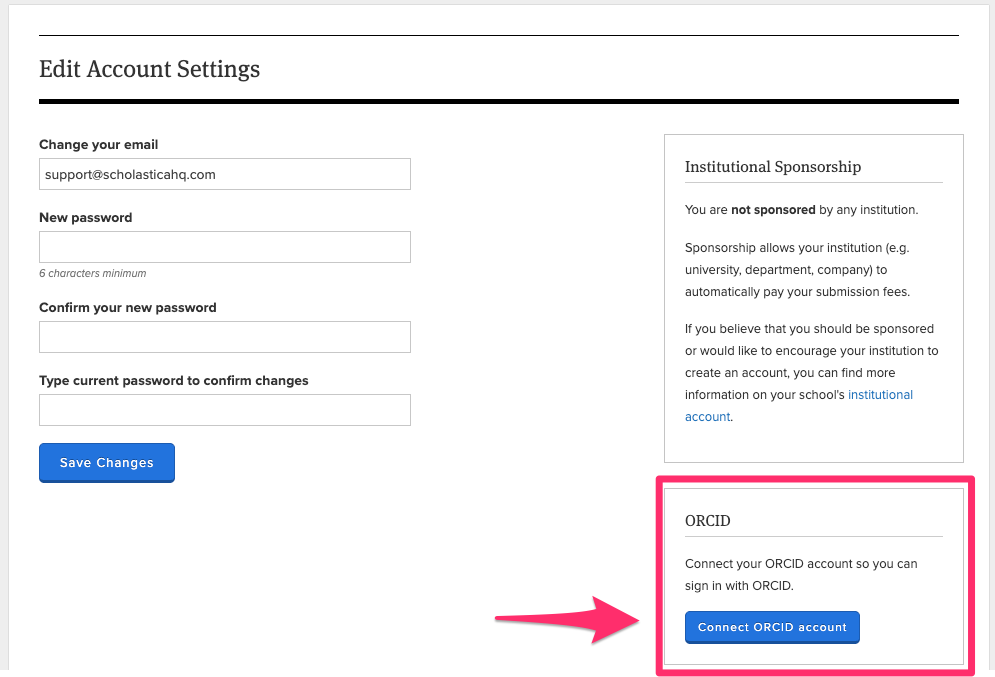
- You'll be redirected to ORCID's authorization page. Log in to ORCID (if needed) and authorize Scholastica.
- You'll be redirected back to your account settings with a success message: "Your ORCID account has been connected successfully."
Your ORCID iD will now appear in the ORCID section with a link to your ORCID profile.
Disconnecting your ORCID
If you'd like to remove the connection between your ORCID and Scholastica:
- Log in to Scholastica, mouseover your name at the top right and click My Account
- In the ORCID section, click Disconnect ORCID.
- Confirm the action in the browser dialog.
- You'll see a success message: "Your ORCID account has been disconnected successfully."
After disconnecting, you'll need to sign in with your email and password. You can reconnect your ORCID at any time by following the steps above.
FAQ
- Can I sign in with both ORCID and my email/password?
- Yes. Connecting ORCID gives you an additional sign-in option — it does not replace your password. You can use whichever method is most convenient.
- Do I still need to set a password if I register with ORCID?
- Yes. A password is always required when creating your account. This ensures you have a backup login method in case you ever need it.
- What if my ORCID doesn't provide my email to Scholastica?
- Email visibility is controlled by your ORCID privacy settings. If your email is not shared with Scholastica, the email field will be blank during registration and you'll need to enter it manually.
- What happens if I try to sign in with ORCID but haven't connected it to a Scholastica account?
- You'll be redirected to the login page with a message: "No Scholastica account is connected to that ORCID. Please log in or create an account first, then connect your ORCID from your account settings."
- What if my ORCID is already linked to a different Scholastica account?
- Each ORCID iD can only be connected to one Scholastica account. If you try to connect an ORCID that's already linked to another account, you'll see an error message. If you believe this is a mistake, please contact our support team.
- Will I need to confirm my email if I register with ORCID?
- Yes. Email confirmation is always required, regardless of how you register. You'll receive a confirmation email after signing up.
- Can I change which ORCID is connected to my account?
- Yes. Disconnect your current ORCID from your account settings, then connect a different one.