
Revise and Resubmit Deadlines
Want to keep your journal's peer review work moving along? When you issue a Revise & Resubmit (R&R) decision, you can optionally set a deadline for the author to submit their revision. This helps you track outstanding revisions and sends automatic email reminders to authors so manuscripts don't slip through the cracks.
In this article
- What are R&R deadlines?
- How to set a deadline when issuing an R&R decision
- How to turn off deadlines for a specific decision
- How to update a deadline after the decision is issued
- Where editors see deadline information
- Where authors see deadline information
- How reminder emails work
- Filtering manuscripts by deadline status
- Frequently asked questions
What are R&R deadlines?
R&R deadlines let you specify a date by which an author should resubmit their revised manuscript. When you set a deadline:
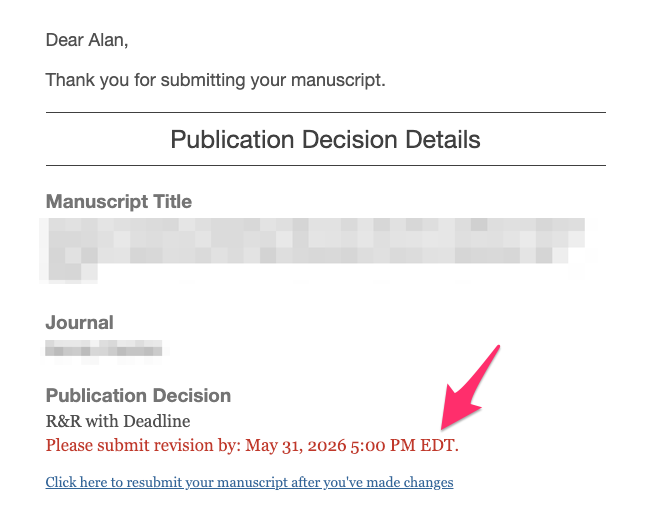
- The author receives the due date in their decision email.
- The author sees the deadline on their My Manuscripts page, in their notification bell, and on the decision page.
- Editors see the deadline in the Manuscripts Table, Manuscript Quick View, and decision pages.
- The system automatically sends email reminders to the author at a frequency you choose.
- After the deadline passes, the manuscript is marked as Late — but the author can still submit their revision.
Important: A deadline passing does not trigger automatic action like rejecting or withdrawing a manuscript. If the deadline passes, the author can still resubmit. The deadline is a communication tool to set expectations and keep revisions on track.
How to set a deadline when issuing an R&R decision
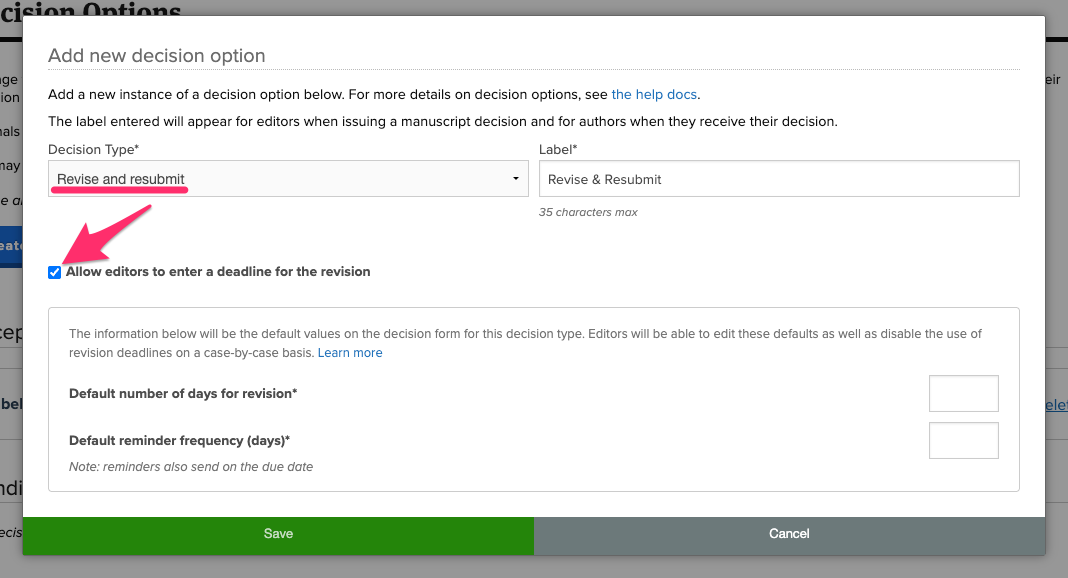
To be able to set a revision deadline for a Revise & Resubmit (R&R) decision, you first need to activate the deadline feature for your R&R decision type.
-
Your journal's admin editor will need to ensure that at least one decision for your journal is set to a decision type of Revise & Resubmit and that the revision deadline feature has been activated for it. They'll do so by navigating to My Journals > Peer Review > Peer Review Settings > Decision Options.
- Navigate to the manuscript where you want to issue the decision and click the Decision tab then click to start or resume the decision draft.
- Select the Revise & Resubmit decision type for which the admin editor has activated the deadline feature.
- In the Set deadline and reminder frequency for the resubmission section that appears, you'll see the following:
- Number of days — How many days from when the decision is issued the author has to resubmit.
- Due at — The time of day (in your journal's timezone) when the deadline expires.
-
Send every __ days — How frequently the author receives email reminders.
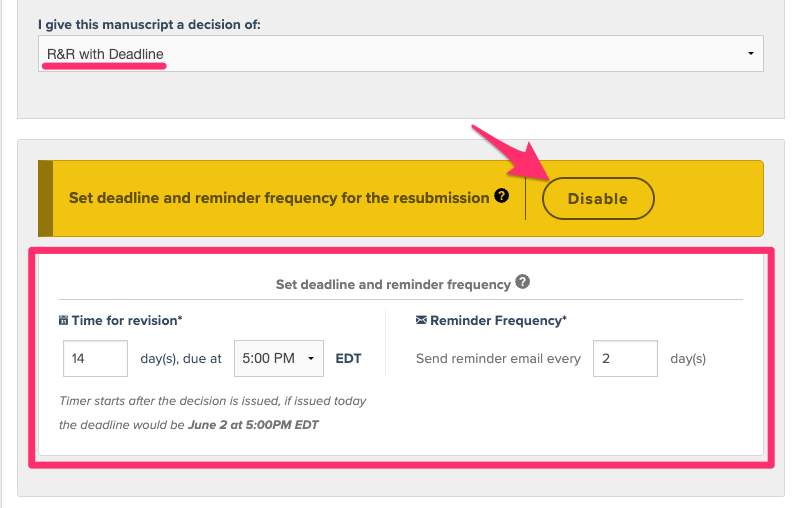
- A preview line will show you the approximate due date if the decision were issued today (e.g., "if issued today the deadline would be June 2 at 5:00 PM EDT"). You can leave these fields to their default values or edit them for this specific instance. You can also choose to click "Disable" if you don't want this particular R&R decision to include a deadline.
- Complete your decision letter and proceed to the confirmation step.
- On the confirmation page, review the Resubmission Deadline and Reminders summary, which displays:
- Time for revision (number of days and approximate date)
- Email reminder frequency
- Confirm and issue the decision.
The deadline due date will be included in the decision email sent to the author.
Note: When an R&R decision type with an activated deadline is selected, the "Do not notify author and editor(s) by email" option is unavailable. The author will always receive an email notification for R&R decisions with activated deadlines so that they are informed of the deadline.
How to turn off deadlines for a specific decision
If you don't want to set a deadline for a particular R&R decision:
-
In the deadline section on the decision page, click Disable.
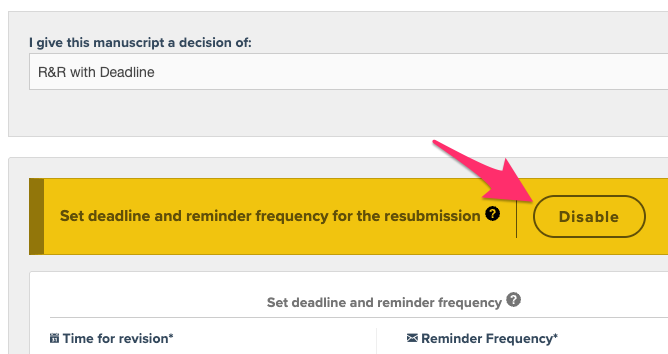
- The section will collapse and display a message confirming that the resubmission deadline and reminder frequency has been disabled.
-
If you change your mind, click Reactivate to restore the deadline fields.
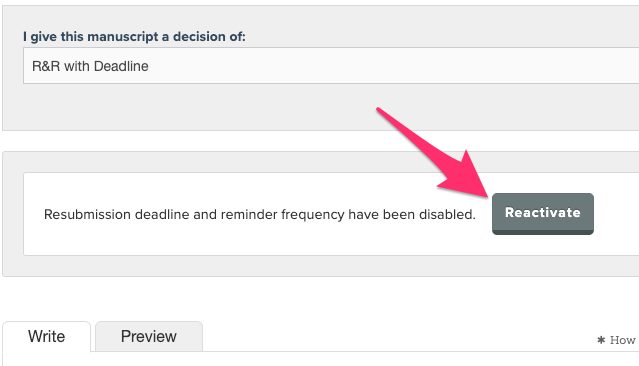
When the deadline is turned off, no due date or reminder emails will be associated with that decision, and no deadline information will be shown to the author.
How to update a deadline after the decision is issued
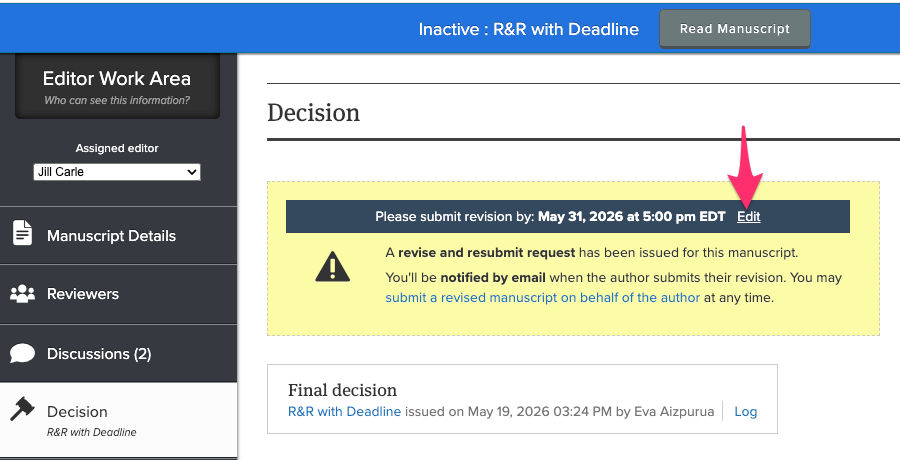
You can update the deadline and reminder frequency for an R&R at any time before the author submits their revision.
- Navigate to the decision — either through the Decision tab in the Manuscript Work Area or the Decision page.
-
Click the Edit link next to the deadline information.
-
In the modal that appears, update the Revision deadline (date and time) and/or the Reminder frequency (days).
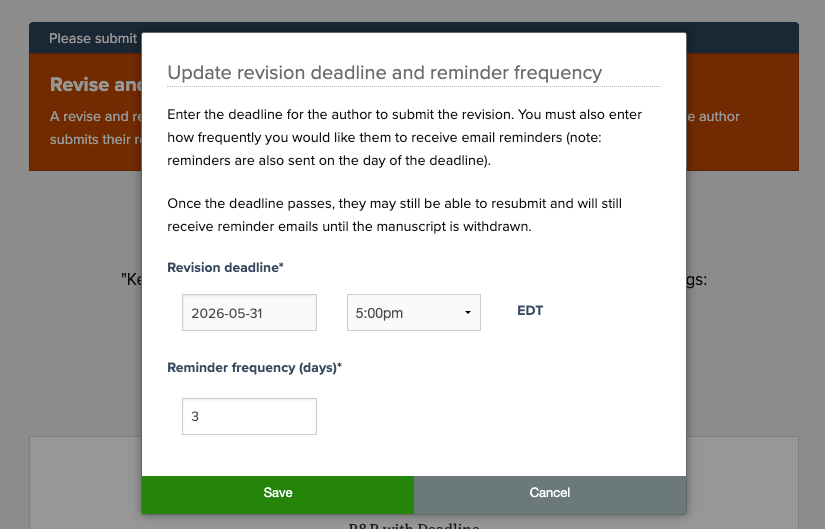
- Click Save to apply your changes.
Restrictions on setting and updating a deadline:
- The deadline must be a future date (you cannot set a deadline in the past).
- The deadline must be within 365 days.
- The reminder frequency must be a whole number between 1 and 365.
- The reminder frequency cannot exceed the number of days until the deadline.
Where editors see deadline information
Once a deadline is set, you'll see the due date and status (pending or late) in several places:
-
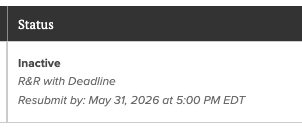
Manuscripts Table (Status column) — Displays "Resubmit by: [date]" below the manuscript status. If the deadline has passed, it shows as Late in red.
- Manuscript Quick View — Shows the due date below the workflow status when you open the quick view panel.
- Decision tab (Manuscript Work Area) — The R&R alert displays the deadline. If late, a Late label appears.
- Decision page — The R&R callout panel includes the due date and late indicator if applicable.
Where authors see deadline information
Authors see their revision deadline in the following locations:
-
Decision email — The deadline is included in the R&R decision email.
- My Manuscripts page — Both the alert banner and the manuscript card display the due date. If the deadline has passed, a Late indicator appears in red.
- Decision page — The R&R callout includes the deadline.
- Manuscript Work Area — The R&R notification on the manuscript details page shows the due date.
- Notification bell — The pending R&R task in the notification dropdown includes the deadline. If late, it shows "Late!" in red.
How reminder emails work
Once a deadline is set, the system sends automatic email reminders to the author:
- Reminders are sent at the frequency you specified (e.g., every 7 days).
- A reminder is also sent on the day of the deadline.
- After the deadline passes, reminder emails continue until the author submits the revision or the manuscript is withdrawn.
- Reminder emails appear in the manuscript's conversation history.
Filtering manuscripts by deadline status
You can filter the Manuscripts Table to quickly find manuscripts with pending or late revisions:
- On the Manuscripts Table, open the Manuscript status filter dropdown.
- Select Revise & resubmit (pending) to see manuscripts where the deadline has not yet passed.
- Select Revise & resubmit (late) to see manuscripts where the deadline has passed.
- Select Revise & resubmit to see both pending and late manuscripts combined (i.e. all papers with an open R&R decision).
These filters can be used alongside other status filters, but they appear only when your journal has manuscripts with deadlines set.
Frequently asked questions
- Can an author still submit a revision after the deadline passes?
- Yes! The deadline is not a hard lock — it serves as a communication tool. Authors can still submit revisions after the deadline. The manuscript will show as "Late" to both you and the author.
- Does the deadline automatically reject or withdraw a manuscript?
- No automatic action is taken when a deadline passes. It's up to you to follow up with the author and decide whether to withdraw the manuscript if no revision is forthcoming.
- What timezone is used for the deadline?
- All deadlines are set and displayed in the journal's timezone.
- Can I set different deadlines for different R&R decision types?
- Yes! Each time you issue an R&R decision for which the deadline feature has been activated, you set the default deadline independently for that specific decision type. You can also always adjust the deadline and reminder frequency per individual decision as well.
- What happens if I don't want to use deadlines at all?
- You can turn off the deadline for each individual decision by clicking Disable in the deadline section when issuing the R&R. No reminders will be sent and no deadline information will be shown.
- Can the author see the reminder frequency I set?
- The author sees the deadline date and receives the reminder emails, but they do not see the specific frequency setting you configured.