
Inviting reviewers to a manuscript
Finding the right reviewer can feel like a scavenger hunt — checking who's already overloaded, remembering who turned in a great review last time, or wondering whether there's someone better suited you just haven't found yet.
Scholastica's reviewer search brings all of that into one screen: search and filter your own reviewer pool or platform-wide by criteria like research interests, institution, pending invitations, and past review history, then set deadlines and write your invitation in the same flow — so you spend less time hunting for reviewers and more time confident you've picked the right one.
- Open Reviewer Search from the manuscript
- Choose where to search
- Search, filter, and sort results
- Start the invitation
- Write the invitation letter
- Preview and send
- After sending
1. Open Reviewer Search from the manuscript
From the manuscript work area, click Reviewer and then click Invite reviewer. This opens the Reviewer Search screen, where a Go back to manuscript link at the top lets you return to the Manuscript Work Area at any time.
Check manuscript details while you search
Click the icon on the left of the Reviewer Search screen to open the Manuscript Details Quick View side panel. It remains available while you search so you can refer to the paper's abstract, authors, keywords, and any author-suggested reviewers, reviewers to avoid, and editor notes all without leaving the page.

2. Choose where to search
Two tabs let you choose where to look for a reviewer:
- Your Reviewers — search your journal's existing reviewer pool (this is the default tab).
- Platform-wide — search the platform's network of academic scholars for someone new to your journal.
Please note: "Platform-wide" is not a pool of volunteer reviewers, but a broad network of scholars like yourself.
If you already know who you want to invite and they don't yet have a Scholastica account, click Invite by email instead of searching.

3. Search, filter, and sort results
Use the search bar to find reviewers by name, research interests, institution, department, and — on the Your Reviewers tab — reviewer tags. For multi-word searches, use quotes (for example, "environmental science" ).
Filtering
Click Filters to open a side panel where you can add filters.

Available filters differ by tab:
Your Reviewers:
- Name
- Pending invitations
- Late reviews
- Last invited
- Last completed
- Research interests
- Reviewer tags
- Total reviews
- Total invitations
- Department
- Institution
- Karma
All Scholastica Users:
- Name
- Research interests
- Department
- Institution
- Karma
Sorting
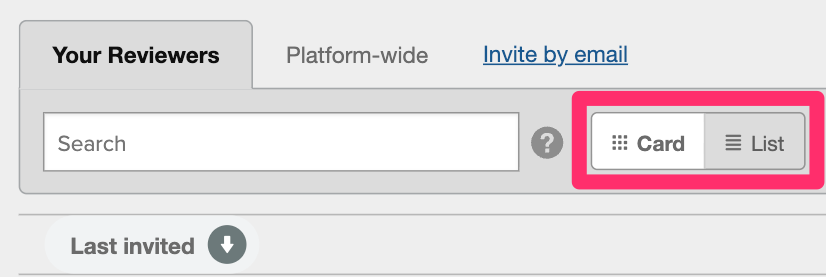
You can also sort your results by column. Switch between Card view and List view using the buttons above the results:
- In List view, click any column header to sort by that column.
-
In Card view, use the Sort by dropdown to choose a column and sort direction.
Sortable columns on the Your Reviewers tab include Name, Institution, Department, Pending invitations, Currently reviewing, Total invitations, Total completed, Last invited, Last submitted, and Karma. On the All Scholastica Users tab, you can sort by Name, Institution, Department, and Karma.
Note: Reviewers who have already reviewed the manuscript won't show an invite option in the results.
4. Start the invitation
Click Invite next to a reviewer's name in the search results, or fill out their contact details manually if you clicked Invite by email.
When inviting by email, only an email address is required — first and last name are optional. If you select a template that uses the merge tags {{REVIEWER-FIRST-NAME}} or {{REVIEWER-LAST-NAME}} and a name is missing, Scholastica will warn you that the tag will render as blank space unless you remove it.
5. Write the invitation letter
On the Write letter step, you'll set:
-
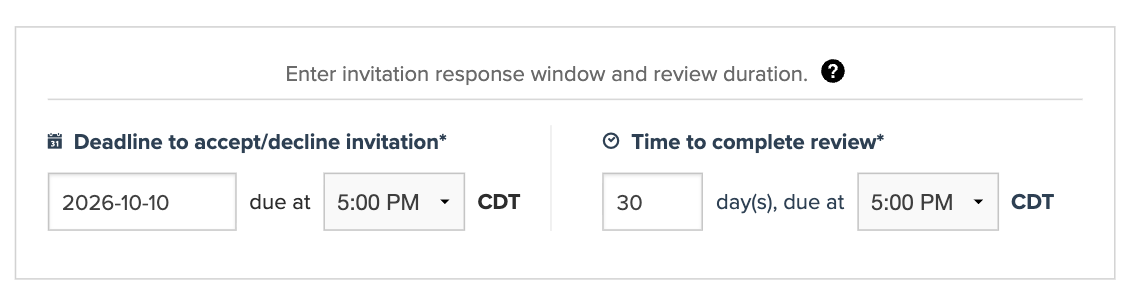
Deadline to accept/decline invitation and Time to complete review — shown if your journal has "Auto-revoke unanswered invitations" enabled in Peer Review Settings. If the recipient doesn't respond by the accept/decline deadline, the invitation is automatically revoked.
-
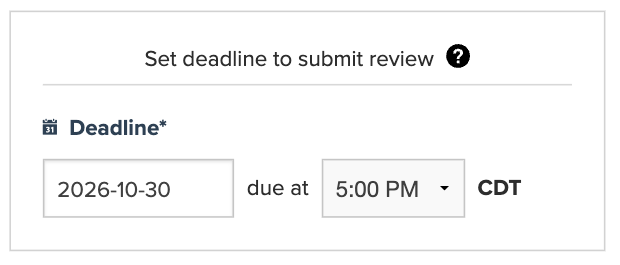
Deadline — a single review-submission deadline, shown instead if your journal doesn't use auto-revoke.
Then write or select the invitation letter body:
- Choose a saved reviewer invitation template from the panel on the right, or write a custom message.
- Available merge tags depend on what contact information is known for the invitee (for example,
{{REVIEWER-FIRST-NAME}}only appears as an option if a first name was entered). - You can save changes to a template directly from this step without leaving the invitation flow.
Click Continue when you're ready to review your letter.
6. Preview and send
The Preview and send step shows exactly what the reviewer will receive: the From/To/Subject lines, the rendered letter body with merge tags filled in, and a summary of the manuscript details (title, article type, authors — if the journal is set to single-blind, abstract) along with the deadline the recipient must respond by.
Review the formatting and merge tags, then click Back to make changes or Send invitation to deliver it.
7. After sending
A confirmation modal lets you choose to Invite another reviewer for this paper or Exit back to the manuscript work area.
For what happens next — including how the reviewer receives and responds to the invitation — see What happens after a reviewer invitation is sent?
Related articles: